MAC Address and Device Key: How Playlist Activation Works
Why TV player apps show a MAC address and a device key, how a website uses the pair to send your playlist to the app, and how to keep it safe.
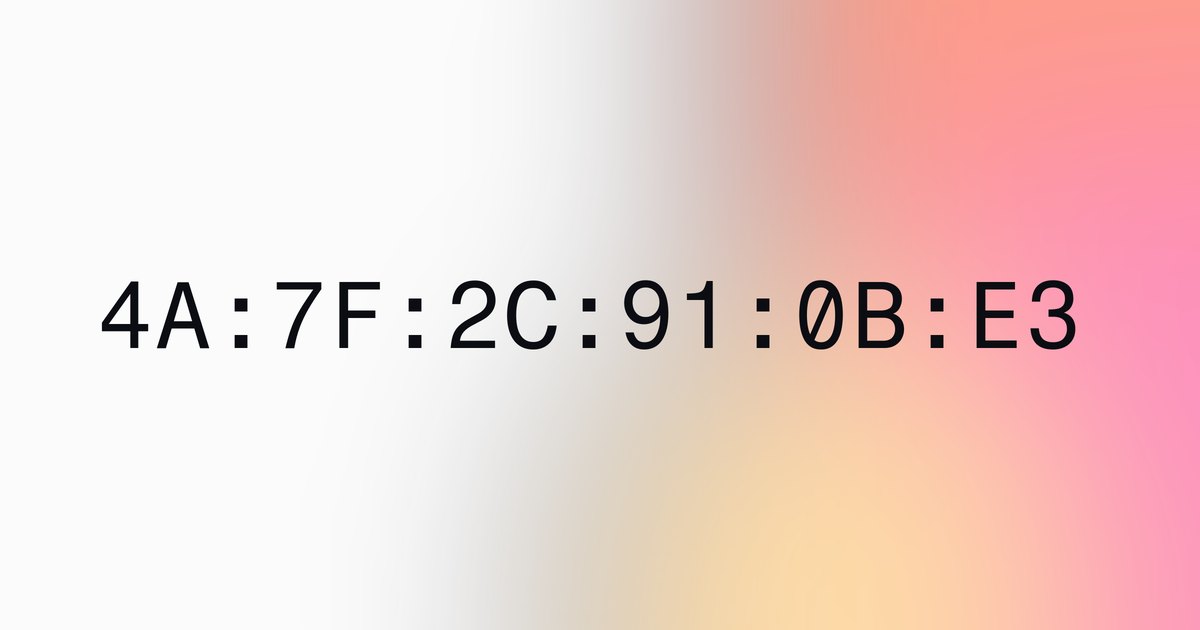
Many player apps, especially on TVs, open on a screen with two values: a MAC address such as 4A:7F:2C:91:0B:E3 and a device key. They send you to a website to add your playlist there. The pair is how that website knows which device your playlist belongs to, so you can paste a long link on a computer or phone instead of typing it with a remote. This guide explains what the two values are, why the “MAC address” usually isn’t your device’s real one, and how to keep the pair from being misused.
Key Takeaways
- The MAC address and device key let a website send playlists to one specific device, so you never type a link on a TV remote.
- On current phones and TVs the number is not the hardware’s real network address: Android 10 and later, and iOS, hide it behind randomized addresses, so apps generate an ID in the same format.
- The device key works like a password. Anyone who has both values can change that device’s playlists.
- Enter the pair only on the website of the app you installed, and never on a site that asks you to pay through a link in a message.
What the pair is for
The idea is simple: the website stores your playlist against the device’s ID, and the app on the device checks the website for it.
- The app shows its MAC address and device key, usually on a “Your device” or account screen.
- On a computer or phone, you sign in on the app’s website with those two values.
- You add your M3U link or Xtream Codes login there.
- The app checks for changes and downloads the new playlist.
How quickly the last step happens depends on the app. Ours checks when it opens, when it comes back to the front, and every 30 seconds while it is open, so a change usually arrives within a minute.
Why it isn’t your device’s real MAC address
A MAC address is the address a network card is given by its maker, and a real one belongs to that card alone. Phones and TVs no longer give it to apps, because a fixed hardware address lets anyone who sees it follow a device from network to network.
- Android. Since Android 10, “the system transmits randomized MAC addresses by default”. Reading non-resettable identifiers such as the IMEI and serial number needs a privileged permission, which apps from the Play Store can’t hold (Android Developers, privacy changes in Android 10).
- iPhone and iPad. Apple devices use “a different MAC address for each Wi-Fi network” by default (Apple Support, Use private Wi-Fi addresses).
So apps make their own ID and write it in the familiar six-pair format, because that is what people and websites in this category expect.
Kibo Player builds its ID from a hash of the identifier the operating system gives the app. It then sets one bit in the first byte: the “locally administered” bit, which marks addresses that weren’t assigned to a network card by its maker (Wikipedia, MAC address). The ID therefore can’t be mistaken for any real network card’s address. You can see the effect yourself: in an address made this way, the second character is always 2, 6, A or E, as in 4A:7F:2C:91:0B:E3.
What happens after a reinstall or a reset
Because these IDs come from identifiers the system controls, they can change when the system decides:
- On Android 8.0 and later, the Android ID an app receives is unique to the combination of app signing key, user and device, and “may change if a factory reset is performed” (Android Developers, Settings.Secure.ANDROID_ID). It doesn’t change when the app is uninstalled and reinstalled, as long as the app is signed with the same key (Android 8.0 behavior changes).
- On iPhone and iPad, the vendor identifier “changes when the user deletes all of that vendor’s apps from the device and subsequently reinstalls one or more of them” (Apple Developer Documentation, identifierForVendor).
After a factory reset, or after deleting and reinstalling the app, look at the pair the app shows. If it changed, sign in on the website with the new pair and add your playlists to it.
How the key protects your playlists
The MAC address says which device; the key proves you are allowed to change it. In our app the key is 8 characters drawn from 32 letters and digits, leaving out 0, O, 1 and I so it is easy to read off a TV screen. That gives 32^8, about 1.1 trillion, possible keys. The key is generated at random on the device and kept in the system’s secure storage: the Keychain on Apple devices, the Keystore on Android.
A strong key only helps if it stays private:
- Treat it like a password. Don’t post a photo of the device screen, and don’t send the pair to anyone you wouldn’t give your playlist login to.
- Remember what it unlocks. Someone with both values could see, replace or remove your playlists on that device, including the provider logins inside them.
- Check the list now and then. If you find a playlist you didn’t add, remove it and contact the app’s support.
Use the right website
This pairing system is common, and so are lookalike sites. Before typing a MAC address and key anywhere:
- Make sure the address is the one the app itself shows or links to. For us, that’s kiboplayer.com.
- Be wary of any page that asks for payment details through a link in a message, or for passwords unrelated to your playlist.
- If in doubt, open the app, follow its own link to the website, and start from there.
Add a playlist from a browser
With the pair in hand, adding a playlist takes a minute:
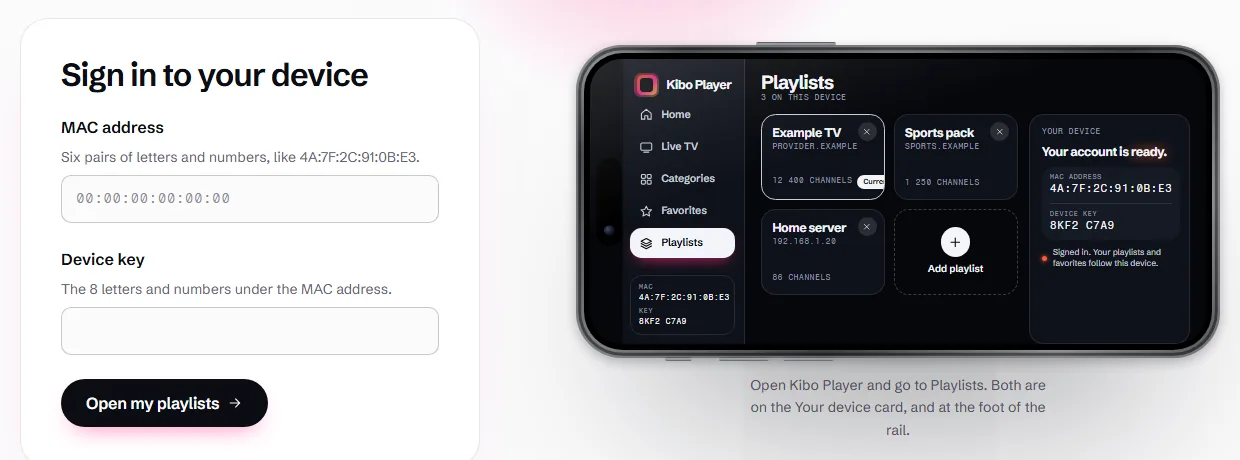
- Open the app on the device and note the MAC address and device key.
- On a computer or phone, open the app’s website and choose Manage playlists. For our app that is Manage playlists.
- Sign in with the two values.
- Add your M3U link, or your Xtream Codes server, username and password. Our guides to M3U and M3U8 and Xtream Codes logins explain both.
- Wait for the device to pick it up. If it still shows nothing after a few minutes, close the app and open it again.
If you are setting up a television, adding an M3U playlist on Android TV and Google TV covers the rest of the setup.
Written by the team that builds Kibo Player. We fact-checked every linked source on 10 November 2026. If something here has changed, tell us, and you can read more about us.